Documentation
Installing Cirrina, your local account, activating a licence, connecting Binance, and setting up your first bot or standing order. Cirrina Web, the version that runs in your browser, has its own sections below: what it is, the Binance key it needs, how a position is closed there and subscribing. The sections from Installing to Buying a licence describe the desktop application.
Installing
Download the installer and run it. Cirrina installs for your user account only and does not ask for administrator rights. Nothing else is needed on the machine: no separate runtime, no database server, no prerequisites. Windows 10 and Windows 11, Home or Pro.
Your local account
The first time Cirrina runs it asks you to create a username and password. That account exists only on this machine.
There is no way to recover it. No email, no reset link, no support override. If you lose the password, the only way back in is to reinstall, and a reinstall starts from an empty database: every bot, standing order and trade record this installation has kept is gone with it. Write the password down somewhere you trust.
The trial, and activating a licence
Cirrina starts a five-day trial by itself on first launch. There is no button to press. It does need an internet connection at that moment, because the trial is registered against the machine rather than counted locally, and the program says so plainly if it cannot reach the licence server.
The trial is the whole application. Paper Trading, Testnet and Live are all available during it, exactly as they are with a licence. Five days is the only limit it carries.
When you buy, paste the key into Settings → Licence and press Activate. That is the entire process. One licence covers one machine at a time, and activating on a new machine moves it there, which is what reinstalling or replacing a computer needs. There is a generous limit on how often that can happen in a month, to stop a key being shared around.
Connecting Binance
API keys go in Settings, never during account setup. Paste your key and secret, press Test Connection to confirm Binance accepts them, then save.
They are encrypted at rest by Windows' own data protection, tied to your Windows user account, and are never transmitted anywhere. Cirrina does not connect to Binance on startup either: you press Start when you want it running.

Paper Trading needs no Binance connection at all. Testnet validates against Binance's sandbox; Live validates against your real account.
Choosing an environment
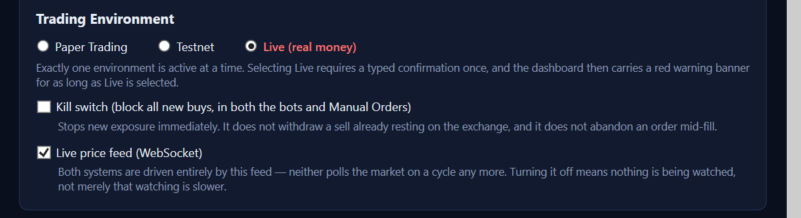
Everything runs in one of three environments, chosen in Settings.
Paper Trading uses real Binance prices against a virtual balance, with commission modelled and sell orders resting rather than filling instantly, so a rehearsal behaves like the real thing. Testnet is Binance's own sandbox. Live uses your money, requires a typed acknowledgement the first time you select it, and shows a red banner for as long as it stays selected.
A fresh install starts on Paper Trading. There is also a kill switch in Settings that stops any new buy immediately, in both bots and standing orders, without stopping anything already in flight.
Creating a bot
A bot is a name and a short list of numbers. You give it a minimum 24-hour volume, an amount per trade, a profit target, a buy-drop percent, a stop-loss percent, and the most positions it may hold at once. Press Start and it applies them across every coin that clears your volume floor.
You can run as many bots as you like, each with its own settings, at the same time. Every trade a bot makes is recorded with the settings that bot had at the moment it made it, so a later edit never rewrites the history of an earlier trade.
There is a shared excluded-coins list in Settings that no bot and no standing order will ever trade. A fresh install ships with one already populated.
Creating a standing order
Standing orders live on their own tab and work differently from a bot. Each one names a single coin you chose deliberately and carries its own trigger price, profit target and stop-loss.
They reserve no capital. You can have as many as you like watching different coins without any of them locking up funds the others might need, and nothing is committed until an order actually fires. While an order is still watching you can edit it in place; once its buy has reached the exchange, it stops being editable, for the obvious reason.

How a position is closed
The moment a buy fills, Cirrina places a real limit sell on Binance at your profit target. That order lives on the exchange, so it survives Cirrina being closed, losing its connection, or crashing.
The stop-loss is different, and the difference matters. It is not an order resting on the exchange. Cirrina watches the price and, if it reaches your stop, cancels the resting sell and sells at market. In the desktop application that only works while Cirrina is running and connected. (Cirrina Web runs it on our server; see below.) If the program is closed, your profit target is still live on Binance, and your stop-loss is not.
Buying a licence
Payment is USDT on the TRON network, TRC-20 only. Pick a plan, and the buy page shows you an exact amount and an address with a countdown beside it.
Send the amount, then paste the transaction's hash back into the page. Cirrina's server checks it against the TRON chain and issues your key on screen, usually within seconds and without waiting for confirmations. Save the key somewhere; the page also gives you a link that will show it again.
Send on TRC-20 and nothing else. USDT exists on several networks, and coins sent on the wrong one do not arrive and cannot be recovered by anybody.
Cirrina Web
Cirrina Web is the same trading program, running on our server and used in your browser at app.getcirrina.com. Bots, standing orders, Paper Trading, Testnet and Live all work as they do on the desktop. The difference is that it keeps running when you close the tab, sign out or switch your computer off.
Create an account with your name, your email address and a password. We email you a link to confirm the address, and your five-day trial starts when you open it. No card is needed. Two-factor sign-in is optional and recommended.
Paper Trading needs no Binance connection at all, so you can try everything before you give Cirrina Web a key.
The Binance key Cirrina Web needs
For Live trading, Cirrina Web accepts only a key that is locked down. When you save one, we check it with Binance, and we refuse it if it can withdraw money or if it is not restricted to our server's addresses. That is deliberate: such a key cannot be used to take money out of your account, and it does not work from anyone else's computer.
- In Binance, open API Management and create a new key.
- Open the key's restrictions. Turn on spot trading. Leave withdrawals switched off.
- Choose to restrict access to trusted IP addresses only, and enter the addresses Cirrina Web shows you in Settings, in the Binance connection section.
- Save the key in Binance, then paste the key and secret into Cirrina Web and press Test connection & save.
Binance's own screens change from time to time, so its wording may differ a little from the above. The three things that matter do not: trading on, withdrawals off, restricted to the addresses Cirrina Web shows you.
A key that can trade is still a key that can lose you money by trading, which is the job. What it cannot do is withdraw.
How a position is closed on Cirrina Web
The profit target is the same as on the desktop: a real limit sell on Binance, which does not depend on us at all.
The stop-loss runs on our server, so it keeps watching when your own computer is off. It depends on that server being up. While the server is down or restarting, no stop-loss is running for anyone, and the profit target resting on Binance is unaffected. Planned maintenance is announced in the app and by email, and new buys are paused first.
Signing out stops nothing. To stop a bot or a standing order, press its Stop button.
Subscribing to Cirrina Web, and what happens when it ends
After the trial: $10 for 30 days, $100 for 365 days, or $300 for life. You pay inside Cirrina Web, in USDT on TRC-20, the same way as a desktop licence (see Buying a licence above), with the same warning about the network.
The amount that arrives is what counts. Exchanges take their own withdrawal fee out of what you send, so send enough that the full quoted amount reaches us. A payment that arrives short of the quote is held, not lost: write to us and we will sort it out by hand.
Every web plan includes a desktop licence for the same period. A new period starts when the current one ends, and buying during the trial ends the trial.
When a Cirrina Web subscription ends, nothing is sold. Your bots and standing orders stop and no new buy is placed. A position you already hold keeps its profit target resting on Binance, and its stop-loss keeps running until the position closes on its own.
The desktop licence that comes with a plan is different, because it is the desktop application's own licence. When it genuinely ends, the desktop application closes its open positions at market. A one-month plan reaches that date every month, so if you use the desktop application on a monthly plan, review your positions before the end date.
Questions
- What is Cirrina?
- A program that trades cryptocurrency on Binance under rules you type in yourself, as a desktop application for Windows and Mac or as Cirrina Web in your browser. It forms no opinion about the market. It applies the settings you gave it.
- What does the desktop application cost?
- $50 for one year, $80 for two, or $170 for a lifetime licence. One payment, no subscription. Five days free first.
- What does Cirrina Web cost?
- $10 for 30 days, $100 for 365 days, or $300 for life, after five days free with no card. Every plan includes a desktop licence for the same period.
- Which exchange does it support?
- Binance, and only Binance.
- Does it work on Windows Home?
- Yes, on Windows 10 and 11, Home or Pro, with no administrator rights and nothing else to install.
- Does Cirrina send my data anywhere?
- The desktop application keeps your Binance keys encrypted on your machine and never transmits them. The only outbound connection besides Binance is a licence check carrying a hashed fingerprint of the machine and nothing else. Cirrina Web is different by nature: it stores your key, encrypted, on our server, and accepts only a key that cannot withdraw and is restricted to the server's addresses.
- Does it keep trading when I close it?
- The desktop application does not. Closing it disconnects from Binance and stops everything. Nothing runs in the background and nothing starts trading on its own when you next open it. A profit target already resting on the exchange stays there, because it is a real Binance order. Cirrina Web does keep running when you close the tab, which is its purpose.
- How do I pay?
- USDT on TRC-20. Send the quoted amount, paste the transaction hash, and the key appears on screen.